Deploying 5 Microservices to AWS ECS - A Complete Hands-On Journey from GitHub to Production
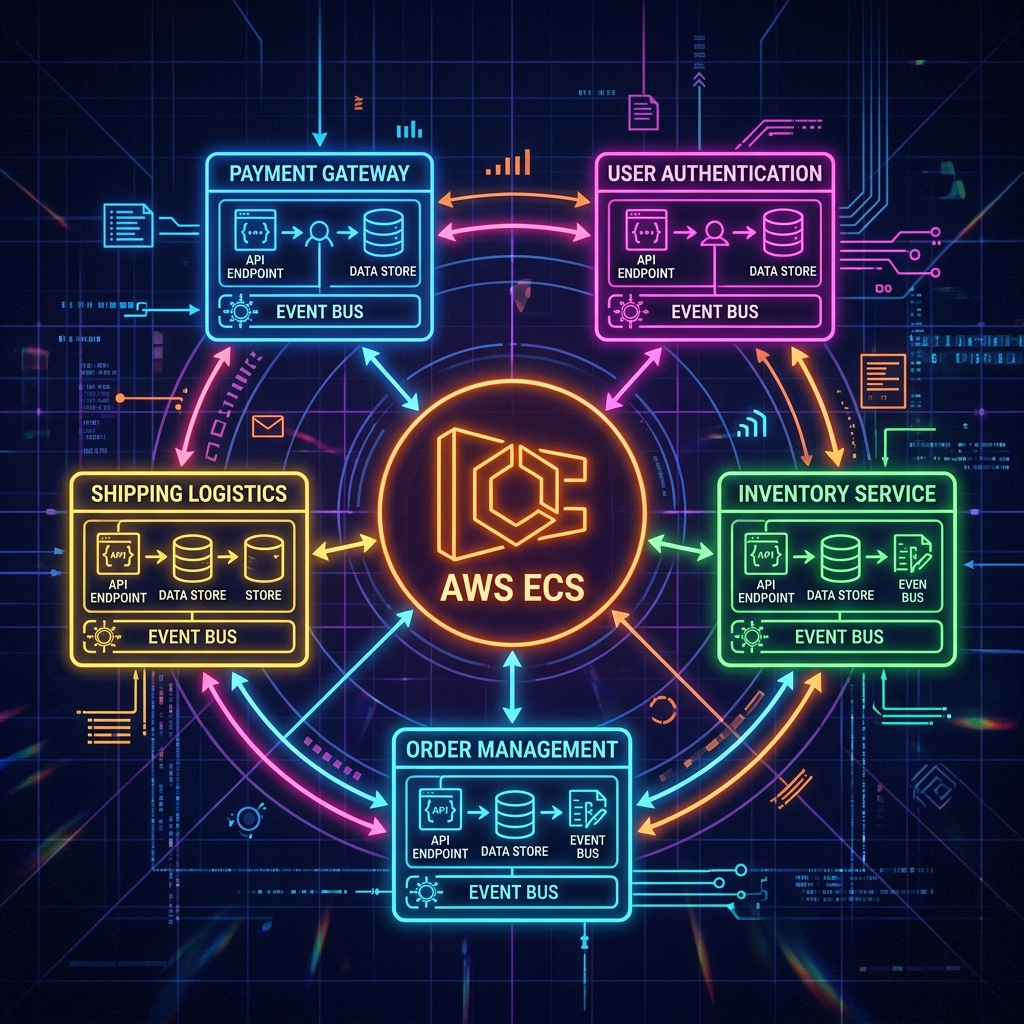
This blog documents a real, end-to-end AWS deployment I did hands-on through the AWS Console - no Terraform, no CDK. 5 independent Python/FastAPI backend services, 1 shared React frontend, full CI/CD from GitHub through CodeBuild and CodePipeline, all running on ECS Fargate. I hit 7 real issues along the way and documented every single one.
Table of Contents
- What We Built
- Architecture Overview
- Deployment Phases
- Dockerfile Evolution - What We Learned
- Issues Encountered and How We Fixed Them
- Networking Troubleshooting
- CI/CD Pipeline Deep Dive
- Key Takeaways
- What’s Next
1. What We Built
Five independent PoC applications, each with its own FastAPI backend and a single shared React frontend that switches between them via tabs - no page reload, no separate URLs per app.
| App | What it does |
|---|---|
| DataPulse | CSV file explorer - upload a CSV, get instant charts, stats, and a data preview table |
| TaskFlow | Kanban task manager - create tasks, move them across columns, assign priorities |
| ChatMind | AI chat interface - session-based Q&A, ready to plug in AWS Bedrock |
| FileVault | Document manager - drag-and-drop upload, SHA-256 checksums, tag management |
| MetricsHub | Live dashboard - real CPU/memory/disk via psutil, simulated endpoint health checks |
Technology Stack
- Backend: Python 3.12, FastAPI, uvicorn,
uvpackage manager - Frontend: React 18, Recharts, native
fetch()- no axios - Containers: Docker (multi-stage builds), AWS ECR, AWS ECS Fargate
- CI/CD: GitHub → AWS CodeBuild → AWS CodePipeline → ECS rolling deploy
- Networking: VPC, public/private subnets, NAT Gateway, ALB with path-based routing
- Setup: Entirely via AWS Console - ideal for learning every moving part
2. Architecture Overview
The entire system uses one Application Load Balancer (ALB) with path-based routing. No custom domain or SSL certificate needed for the PoC - just the ALB’s auto-assigned DNS name.
Browser  →  http://<ALB-DNS>/                    →  React Frontend (Nginx, port 80)
         →  http://<ALB-DNS>/api/datapulse/*     →  DataPulse FastAPI (port 8000)
         →  http://<ALB-DNS>/api/taskflow/*      →  TaskFlow FastAPI (port 8000)
         →  http://<ALB-DNS>/api/chatmind/*      →  ChatMind FastAPI (port 8000)
         →  http://<ALB-DNS>/api/filevault/*     →  FileVault FastAPI (port 8000)
         →  http://<ALB-DNS>/api/metricshub/*    →  MetricsHub FastAPI (port 8000)
Why Path-Based Routing?
Without a custom domain, host-based routing (e.g. app1.yourdomain.com) is not possible. Path-based routing solves this cleanly - one ALB, one DNS name, 6 apps. Each ALB listener rule checks the URL path prefix and forwards to the matching ECS target group.
💡 Key Insight:
root_pathin FastAPI is essential for this to work. Settingroot_path="/api/datapulse"tells FastAPI it is mounted at that prefix - fixing Swagger docs, redirect URLs, and health check routing without changing any of your route decorators (@app.get("/health")still works as-is).
6 Separate GitHub Repositories
One repo per service enables parallel development across team members:
poc-frontend-shell       ← React tabbed shell + all 5 UI components
poc-backend-datapulse    ← FastAPI CSV processing service
poc-backend-taskflow     ← FastAPI Kanban CRUD service
poc-backend-chatmind     ← FastAPI chat session service
poc-backend-filevault    ← FastAPI file upload service
poc-backend-metricshub   ← FastAPI system metrics service
The frontend team works entirely in poc-frontend-shell. Each backend team works in their own repo. A git push to main in any repo auto-triggers that repo’s CodePipeline.
3. Deployment Phases
The deployment follows 7 phases in strict order - each phase depends on the previous one.
| Phase | What you do | Why the order matters |
|---|---|---|
| 1 - IAM Roles | Create ecsTaskExecutionRole, CodeBuild role. CodePipeline role is auto-created. |
Everything else assumes these roles exist |
| 2 - Networking | VPC, 4 subnets, Internet Gateway, NAT Gateway, 2 route tables, 2 security groups | All other services live inside this network |
| 3 - ECR | 6 private image repositories | CodeBuild needs these to push images to |
| 4 - ALB + Target Groups | 1 ALB, 6 target groups (type: IP), 5 path rules + default rule | ECS services need to reference a target group at creation time |
| 5 - ECS | 1 Fargate cluster, 6 task definitions, 6 services with load balancer config | Services register tasks into target groups automatically |
| 6 - CodeBuild | 6 build projects connected to GitHub, privileged mode ON | Pipelines need these build projects to exist |
| 7 - CodePipeline | 6 pipelines (Source → Build → Deploy) | Last step - triggers the first real deployment |
⚠️ Critical: Always create the ALB and target groups before ECS services. ECS requires a target group reference at creation time. You cannot add a load balancer to an existing service - if you miss it, you must delete and recreate the service.
4. Dockerfile Evolution - What We Learned
The Dockerfiles went through several iterations during debugging. Here are the final, battle-tested versions.
Final Backend Dockerfile (same pattern for all 5 backends)
FROM public.ecr.aws/docker/library/python:3.12-slim

# Install uv - ultra-fast Python package manager written in Rust
COPY --from=ghcr.io/astral-sh/uv:latest /uv /usr/local/bin/uv

WORKDIR /app

# Expose .venv to PATH so uvicorn is found without shell activation
ENV PATH="/app/.venv/bin:$PATH"

# Copy BOTH pyproject.toml AND uv.lock before installing
# --frozen ensures exact reproducible install from the lock file
COPY pyproject.toml uv.lock ./
RUN uv sync --no-cache --frozen

COPY . .
EXPOSE 8000
CMD ["uvicorn", "main:app", "--host", "0.0.0.0", "--port", "8000"]
Special cases:
backend-metricshubneedsgccinstalled before uv (psutil has C extensions)backend-filevaultneedsRUN mkdir -p /tmp/filevault_uploads
Final Frontend Dockerfile (multi-stage)
# Stage 1: Build React app (this layer is discarded afterwards)
FROM public.ecr.aws/docker/library/node:20-alpine AS build
WORKDIR /app
COPY package.json .
RUN npm install
COPY . .

# REACT_APP_ALB_URL is baked into the JS bundle at build time
ARG REACT_APP_ALB_URL
ENV REACT_APP_ALB_URL=$REACT_APP_ALB_URL
RUN npm run build

# Stage 2: Serve with Nginx (~20MB final image, no Node.js)
FROM public.ecr.aws/docker/library/nginx:alpine
COPY --from=build /app/build /usr/share/nginx/html
COPY nginx.conf /etc/nginx/conf.d/default.conf
EXPOSE 80
CMD ["nginx", "-g", "daemon off;"]
Why
public.ecr.awsinstead of Docker Hub? CodeBuild runs on shared AWS IPs. Docker Hub rate-limits unauthenticated pulls (~100 per 6 hours per IP). Using AWS’s public ECR mirror (public.ecr.aws/docker/library/) is free, unthrottled, and requires zero credentials.
5. Issues Encountered and How We Fixed Them
Seven real issues hit during this deployment - documented with exact errors, root causes, and fixes.
Issue 1 - Empty Dockerfile in backend-datapulse
Error:
COMMAND_EXECUTION_ERROR: Error while executing command: docker build -t $REPOSITORY_URI:$IMAGE_TAG .
Reason: exit status 1
Root cause: The Dockerfile file existed but had 0 bytes. CodeBuild had nothing to build from.
Fix: Wrote the complete Dockerfile following the same pattern as the other backends.
Lesson: Always verify all Dockerfiles exist and are non-empty before pushing to source control or triggering CI pipelines.
Issue 2 - uv.lock Missing from Docker Build Context
Error: uv sync silently failed or produced non-deterministic installs because uv.lock was absent inside the container.
Root cause: All backend Dockerfiles only copied pyproject.toml. uv sync requires the lock file for reproducible, pinned installs.
Fix:
# Before
COPY pyproject.toml .
RUN uv sync --no-cache --system

# After
COPY pyproject.toml uv.lock ./
RUN uv sync --no-cache --frozen
--frozen tells uv to use uv.lock exactly and fail if the lock is out of sync with pyproject.toml.
Lesson: In any Docker build that uses a lock file (uv.lock, poetry.lock, package-lock.json), always copy the lock file before the install step.
Issue 3 - --system Flag Invalid in uv sync
Error:
error: unexpected argument '--system' found
tip: a similar argument exists: '--system-certs'
Usage: uv sync --no-cache --system-certs
exit code: 2
Root cause: --system is valid for uv pip install but not for uv sync. uv sync always installs into a virtual environment (.venv).
Fix: Remove --system, and expose the venv via ENV PATH:
ENV PATH="/app/.venv/bin:$PATH"
RUN uv sync --no-cache --frozen
Lesson: uv pip install --system and uv sync are different commands with different flag sets. Don’t mix them.
Issue 4 - IAM AccessDeniedException on ECR Login (Frontend CodeBuild)
Error:
AccessDeniedException: User: arn:aws:sts::<AWS_ACCOUNT_ID>:assumed-role/codebuild-build-frontend-service-role/...
is not authorized to perform: ecr:GetAuthorizationToken on resource: *
Root cause: When the frontend CodeBuild project was created, AWS auto-generated a new IAM service role with only basic CodeBuild permissions - no ECR access.
Fix (AWS Console):
- IAM → Roles →
codebuild-build-frontend-service-role - Add permissions → Attach policies
- Attach
AmazonEC2ContainerRegistryPowerUser
Lesson: Every new CodeBuild project auto-creates a new IAM role with minimal permissions. Any project that pushes Docker images to ECR must have AmazonEC2ContainerRegistryPowerUser explicitly attached.
Issue 5 - Docker Hub 429 Rate Limit
Error:
429 Too Many Requests
toomanyrequests: You have reached your unauthenticated pull rate limit.
Root cause: CodeBuild pulls base images from Docker Hub on shared public IPs. The shared IP pool hits the unauthenticated rate limit (~100 pulls per 6 hours) very frequently.
Fix: Switch all base images to AWS ECR Public Gallery mirrors:
| Before | After |
|---|---|
node:20-alpine |
public.ecr.aws/docker/library/node:20-alpine |
nginx:alpine |
public.ecr.aws/docker/library/nginx:alpine |
python:3.12-slim |
public.ecr.aws/docker/library/python:3.12-slim |
Lesson: Use public.ecr.aws/docker/library/ as the default for any Dockerfile running in AWS CI/CD pipelines. Zero credentials needed, no rate limits.
Issue 6 - ECR Repository Name Mismatch
Error:
name unknown: The repository with name 'poc/frontend-shell' does not exist
in the registry with id '<AWS_ACCOUNT_ID>'
Root cause: buildspec.yml had IMAGE_REPO_NAME: "poc/frontend-shell" but the ECR repository was created as poc/frontend.
Fix: Updated buildspec.yml (and the IMAGE_REPO_NAME env var in CodeBuild) to match the actual ECR repo name:
IMAGE_REPO_NAME: "poc/frontend"
Lesson: There are two independent name values to keep in sync:
| Value | Where it lives | Must match |
|---|---|---|
IMAGE_REPO_NAME |
buildspec.yml env var |
ECR repository name in AWS Console |
Container name in imagedefinitions.json |
buildspec.yml post_build |
Container name in ECS Task Definition |
Issue 7 - crypto.randomUUID() Fails on HTTP
Error (browser console):
Uncaught TypeError: crypto.randomUUID is not a function
    at ChatMind.jsx:7:27
Root cause: crypto.randomUUID() only works in secure contexts (HTTPS or localhost). The ALB URL is plain HTTP - no SSL certificate in the PoC.
Fix: Replace with a Math.random()-based UUID that works on both HTTP and HTTPS:
// Before (fails on HTTP)
const SESSION_ID = crypto.randomUUID();

// After (works everywhere)
function generateUUID() {
  return 'xxxxxxxx-xxxx-4xxx-yxxx-xxxxxxxxxxxx'.replace(/[xy]/g, function(c) {
    const r = Math.random() * 16 | 0;
    const v = c === 'x' ? r : (r & 0x3 | 0x8);
    return v.toString(16);
  });
}
const SESSION_ID = generateUUID();
Lesson: Once you add a custom domain with an ACM certificate (HTTPS), you can switch back to crypto.randomUUID().
6. Networking Troubleshooting
Networking issues caused the most confusion. Here are the three main problems and their exact fixes.
Problem 1 - Blackhole Routes on Private Route Tables
Symptom:
ResourceInitializationError: unable to pull registry auth from Amazon ECR:
There is a connection issue between the task and Amazon ECR.
dial tcp 13.234.9.92:443: i/o timeout
What happened: Both private route tables showed 0.0.0.0/0 → Blackhole. The NAT Gateway had been deleted but the route tables still pointed to its old ID.
Fix:
- VPC → NAT Gateways → Create new NAT Gateway in
poc-public-1a, allocate Elastic IP - VPC → Route Tables →
poc-private-rt-1a→ Edit routes → delete the Blackhole entry → add0.0.0.0/0 → new NAT - Repeat for
poc-private-rt-1b - Delete the old NAT Gateway → release its Elastic IP (~$4/month if unused)
💰 Cost note: NAT Gateway costs ~$35/month. If you delete it to save cost, route tables will show Blackhole and ECS tasks will fail to pull ECR images. Always delete the old NAT before creating a new one, and release the associated Elastic IP.
Problem 2 - Request Timed Out on Target Health Checks
Symptom: Target groups showed Unhealthy - Request timed out even though the container was running and logs showed Application startup complete.
Root cause: Security group poc-ecs-sg was missing port 8000 inbound rule. The ALB’s health checks were being blocked.
Fix:
- EC2 → Security Groups →
poc-ecs-sg→ Edit inbound rules - Add:
Custom TCP | Port 8000 | Source: 0.0.0.0/0 - Also changed health check path from
/api/datapulse/healthto/health- simpler and works regardless ofroot_pathconfiguration
Correct inbound rules for poc-ecs-sg:
| Type | Port | Source |
|---|---|---|
| HTTP | 80 | 0.0.0.0/0 |
| Custom TCP | 8000 | 0.0.0.0/0 |
Problem 3 - 0 Registered Targets
Symptom: All pipelines succeeded, but target groups showed 0 registered targets and the ALB returned 503.
Root cause: ECS services were created without load balancer configuration. The load balancer must be linked at service creation time - you cannot add it to an existing service.
Fix: Delete all 6 services and recreate them with the correct ALB + target group settings:
Load balancer type:        Application Load Balancer
Load balancer:             poc-alb
Container : port:          backend-datapulse : 8000
Listener:                  80 : HTTP (existing)
Target group:              tg-datapulse (existing)
Health check grace period: 60 seconds
7. CI/CD Pipeline Deep Dive
Each of the 6 pipelines follows the same 3-stage structure.
git push to GitHub main branch
        ↓  auto-triggers via GitHub connection
Stage 1 - Source
  GitHub (Version 2) connection pulls latest commit artifact

Stage 2 - Build (CodeBuild)
  docker login to ECR
  docker build   (reads Dockerfile + buildspec.yml)
  docker push    (new image stored in ECR)
  writes imagedefinitions.json

Stage 3 - Deploy (ECS rolling deployment)
  reads imagedefinitions.json
  updates ECS Task Definition with new image URI
  new task starts → ALB health check passes → old task stops
  zero downtime
The imagedefinitions.json Contract
This small JSON file is the bridge between CodeBuild and the ECS Deploy stage:
[{
  "name": "backend-datapulse",
  "imageUri": "<AWS_ACCOUNT_ID>.dkr.ecr.ap-south-1.amazonaws.com/poc/backend-datapulse:latest"
}]
⚠️ The
namefield must exactly match the container name in your ECS Task Definition - case-sensitive. If they differ, the deploy stage succeeds silently but deploys nothing. No error, no update. This was one of the first issues hit.
buildspec.yml Pattern
Every backend uses the same structure - only IMAGE_REPO_NAME and the container name in imagedefinitions.json change:
version: 0.2
env:
  variables:
    IMAGE_REPO_NAME: "poc/backend-datapulse"
    IMAGE_TAG: "latest"

phases:
  pre_build:
    commands:
      - aws ecr get-login-password --region $AWS_DEFAULT_REGION | docker login \
          --username AWS --password-stdin \
          $AWS_ACCOUNT_ID.dkr.ecr.$AWS_DEFAULT_REGION.amazonaws.com
      - REPOSITORY_URI=$AWS_ACCOUNT_ID.dkr.ecr.$AWS_DEFAULT_REGION.amazonaws.com/$IMAGE_REPO_NAME

  build:
    commands:
      - docker build -t $REPOSITORY_URI:$IMAGE_TAG .

  post_build:
    commands:
      - docker push $REPOSITORY_URI:$IMAGE_TAG
      - printf '[{"name":"backend-datapulse","imageUri":"%s"}]' \
          $REPOSITORY_URI:$IMAGE_TAG > imagedefinitions.json

artifacts:
  files: imagedefinitions.json
GitHub Connection - Not CodeCommit
Rather than using CodeCommit, we connected GitHub directly to CodePipeline using a GitHub (Version 2) connection via AWS CodeConnections:
- CodePipeline → Settings → Connections → Create connection → GitHub
- Authorize AWS Connector for GitHub in your GitHub account
- Grant access to all 6 repositories
- In each pipeline Source stage: select GitHub (Version 2), choose the connection, enter
username/repo-name
Repository name format matters: Enter
buildwithedward/poc-backend-datapulse- not the fullhttps://github.com/...URL. The full URL causes a “Not Found” error.
8. Key Takeaways
Ten lessons distilled from everything that went wrong - and right - during this deployment.
-
Use
public.ecr.awsmirrors in all AWS Dockerfiles. Docker Hub rate limits hit frequently on CodeBuild shared IPs. Usepublic.ecr.aws/docker/library/python:3.12-sliminstead ofpython:3.12-slim. -
Always copy lock files before installing.
COPY pyproject.toml uv.lock ./beforeRUN uv sync --frozenensures reproducible, deterministic builds. -
uv synccreates.venv- useENV PATH.uv syncdoes not support--system. AddENV PATH="/app/.venv/bin:$PATH"to expose the venv toCMD. -
New CodeBuild roles need ECR permissions manually. Auto-created roles have minimal permissions. Attach
AmazonEC2ContainerRegistryPowerUserto any CodeBuild role that pushes Docker images. -
Create ALB before ECS services. ECS services need a target group at creation time. You cannot add a load balancer to an existing service.
-
Container names must match exactly. The
nameinimagedefinitions.jsonmust exactly match the container name in the ECS Task Definition - case-sensitive. -
NAT Gateway for private subnets. ECS tasks in private subnets need a NAT Gateway to pull ECR images. Blackhole routes mean the NAT was deleted - recreate it and update both private route tables.
-
Set
root_pathin FastAPI for path-based routing.app = FastAPI(root_path="/api/datapulse")tells FastAPI its mount prefix - required for Swagger docs, redirects, and clean health check paths. -
crypto.randomUUID()requires HTTPS. On plain HTTP, use aMath.random()-based UUID fallback. Switch to the native API when you add a domain and ACM certificate. -
Set target group health check to
/health, not/api/app/health. The ALB sends health checks directly to the container’s port - the simpler path is more reliable and avoidsroot_pathedge cases.
9. What’s Next
This PoC proves the full architecture works end-to-end. To take it to production:
-
Add a custom domain + HTTPS: Request an ACM wildcard certificate (
*.yourdomain.com), add Route 53 A alias records pointing to the ALB, add an HTTPS:443 listener, switch from path-based to host-based routing. -
Plug in AWS Bedrock for ChatMind: Replace the mock responses with
boto3Bedrock calls (claude-4.5-haiku). AddAmazonBedrockFullAccessto the ECS task role. The code change is one function. -
Add a real database: Replace in-memory Python dicts with RDS PostgreSQL or DynamoDB. The FastAPI code change is minimal - just swap the storage layer per service.
-
Add EFS for FileVault: Replace
/tmpstorage with Amazon EFS so uploaded files persist across task restarts and container replacements. -
Auto scaling: Add ECS Service Auto Scaling based on ALB request count or CPU metrics via CloudWatch target tracking policies.
-
Tighten security groups: Change
poc-ecs-sginbound rules from0.0.0.0/0back topoc-alb-sgas the source for ports 80 and 8000.
Final Architecture Summary
GitHub (6 repos)
    ↓  git push to main
AWS CodePipeline (6 pipelines)
    ↓  Source → Build → Deploy
AWS CodeBuild → docker build → AWS ECR (6 image repos)
    ↓  imagedefinitions.json
AWS ECS Fargate (poc-cluster)
    ├── svc-frontend    (poc-frontend-shell:latest,  port 80)
    ├── svc-datapulse   (backend-datapulse:latest,   port 8000)
    ├── svc-taskflow    (backend-taskflow:latest,     port 8000)
    ├── svc-chatmind    (backend-chatmind:latest,     port 8000)
    ├── svc-filevault   (backend-filevault:latest,    port 8000)
    └── svc-metricshub  (backend-metricshub:latest,   port 8000)
    ↑
AWS ALB (poc-alb) - path-based routing
    ↑
Browser → http://poc-alb-xxxxxxxxx.ap-south-1.elb.amazonaws.com/